Documents
The Documents tab stores and organizes aircraft-related documents such as logbook scans, weight and balance sheets, registration certificates, and maintenance reports.
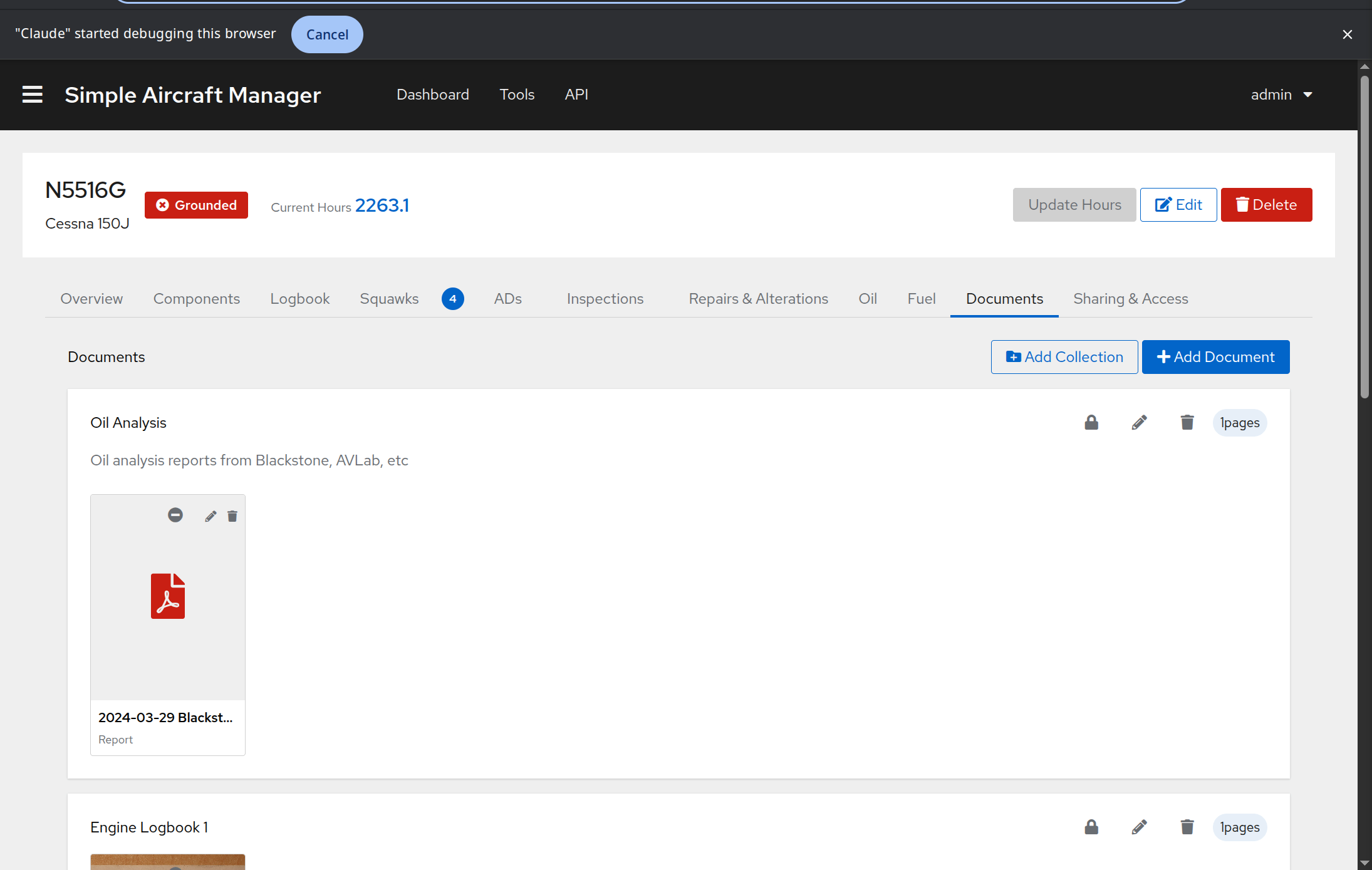
Document Organization
Documents can be organized into collections (folders) or left uncollected.
Collections group related documents together (e.g., “Airframe Log #4” or “2024 Annual Inspection”). Collections are sorted with starred (pinned) collections first, then alphabetically. Each collection shows a page count badge. Click the collection header to expand or collapse its contents – collections start collapsed by default.
Other Documents – Documents not assigned to a collection appear in an “Other Documents” section at the bottom.
Each document is displayed as a thumbnail card showing:
A preview image of the first page (or a file-type icon for non-image files like PDFs).
The document name.
The document type label (Log, Alteration, Report, Invoice, Aircraft Record, or Other).
Creating a Collection
Click Add Collection (owners only). The Name field is focused automatically so you can start typing immediately.
Enter a name and optional description.
Click Save.
Adding a Document
Click Add Document (owners only), or click the plus icon in a collection card header to add a document directly into that collection.
Fill in:
Name – A descriptive name for the document.
Document Type – Select the type (Log, Alteration, Report, Invoice, Aircraft Record, or Other).
Collection – Optionally assign to an existing collection. Collections are listed alphabetically.
Images – Upload one or more image files. These become the pages of the document.
Click Save.
Viewing Documents
Click any document thumbnail to open the document viewer. The viewer shows:
The current page at full size.
Thumbnail navigation along the side to jump between pages.
Page number indicator.
Public Sharing
Documents and collections have sharing controls that determine visibility on public share links (see Settings):
Collections have a toggle between:
Globe icon (green) – Shared publicly. All documents in the collection are visible on share links (unless individually hidden).
Lock icon – Private. Not visible on share links.
Individual documents within a collection have three states:
Globe icon (green) – Always shared, regardless of collection setting.
Eye-slash icon (red) – Always hidden, even if the collection is shared.
Minus icon – Inherits visibility from the collection.
For uncollected documents, the toggle is simpler – shared or private.
Pinning Collections
Owners can star a collection to pin it above all non-starred collections. Click the star icon in the collection card header to toggle pinning on or off. The star appears gold when active. Within the pinned and unpinned groups, collections are still sorted alphabetically.
This is useful for keeping high-priority collections like POH, W&B, or Airframe Logbook always visible at the top.
Editing and Deleting
Click the pencil icon on a document thumbnail to edit its name, type, or collection assignment.
Click the trash icon to delete a document and all its pages.
Collection editing and deletion is available via the icons in the collection card header. Deleting a collection also permanently deletes all documents and pages inside it. This cannot be undone.