Squawks
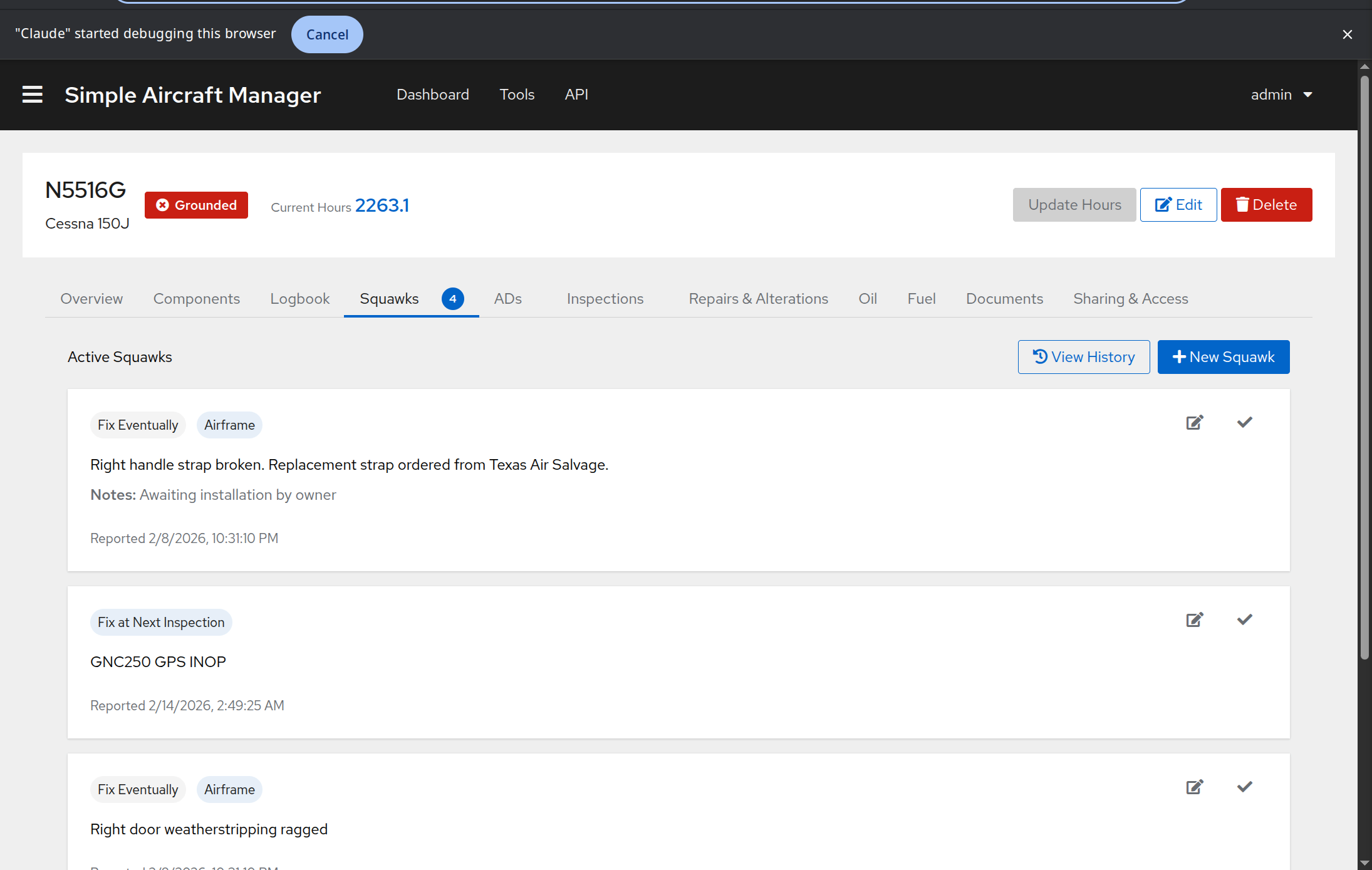
Squawks are maintenance defects or issues reported on the aircraft. They are tracked on the Squawks tab and factor into the aircraft’s airworthiness status.
Priority Levels
Each squawk has a priority level that determines its urgency and visual appearance:
Priority |
Color |
Meaning |
|---|---|---|
Ground Aircraft |
Red |
The aircraft is grounded and cannot fly until this is resolved. This immediately sets the airworthiness status to RED. |
Fix Soon |
Orange |
Should be addressed before the next few flights. |
Fix at Next Inspection |
Blue |
Can wait until the next scheduled inspection. |
Fix Eventually |
Grey |
Low priority; address when convenient. |
The Squawks tab in the navigation shows a badge count of active (unresolved) squawks.
Creating a Squawk
Both owners and pilots can create squawks.
Click New Squawk on the Squawks tab.
Fill in:
Issue Reported – A description of the defect.
Priority – Select the appropriate priority level.
Component – Optionally link the squawk to a specific component.
Notes – Any additional details.
Click Save.
Resolving a Squawk
When a maintenance issue has been addressed:
Find the squawk in the active squawks list.
Click the checkmark button in the card header (owners only).
The squawk is marked as resolved and moves to the history.
Resolved squawks are removed from the active list and no longer affect airworthiness.
Viewing Squawk History
Click View History on the Squawks tab to see all previously resolved squawks, including when they were reported and their priority at the time.
Editing and Deleting Squawks
Owners can edit or delete active squawks:
Click the pencil icon on a squawk card to edit its details.
Squawks can be deleted, but consider resolving them instead to maintain an accurate maintenance history.
Pilots can create squawks but cannot edit or delete them.